
ToMotion practical guide
Whiteboard Video Script Template and Worked Examples
Write a whiteboard video script in two columns: what the audience hears and what the audience sees. Start with one viewer problem, explain the important change, and finish with an action or question. Use the template below to turn that structure into a usable brief.
By ToMotion AI, a product of Assureme Technologies Private Limited.
Written by ToMotion AI. Worked scripts and planning diagrams are original illustrative examples. Product instructions reflect the create workflow reviewed on October 4, 2026; source guidance is linked where used.
Script-mode steps apply when Use own script is available in your create screen. If you do not see that control yet, start with a reviewed source brief in prompt mode.
At a glance
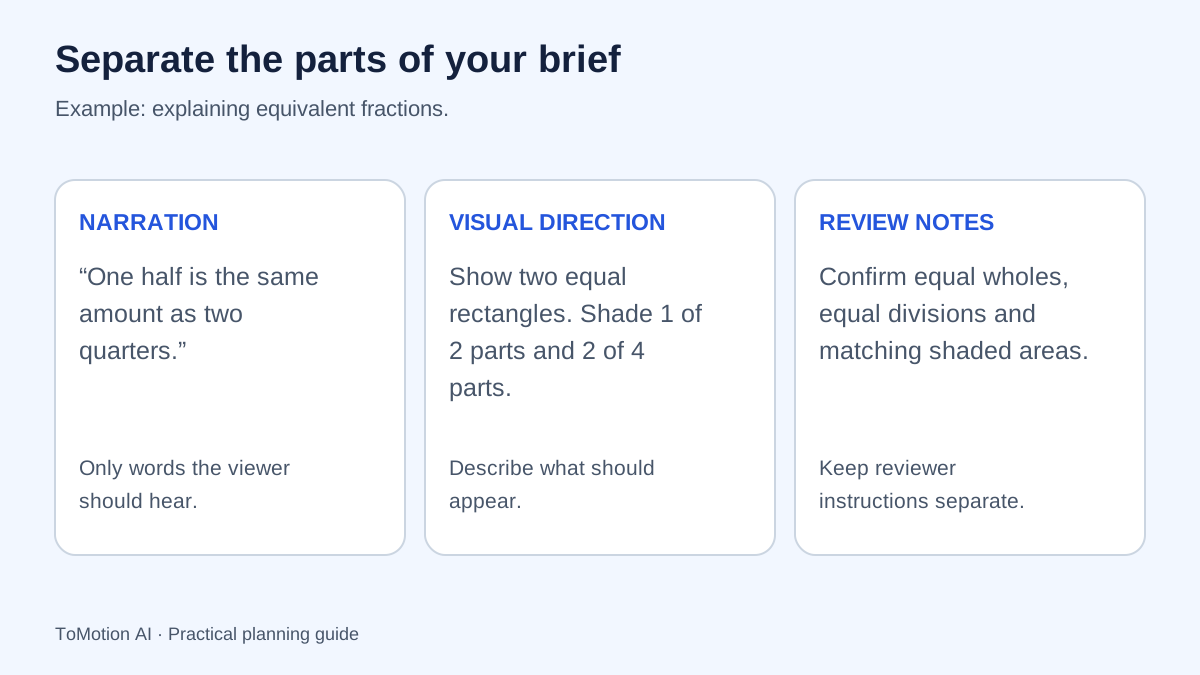
- Separate spoken narration from visual instructions.
- Time the actual delivery instead of relying on a fixed word-count rule.
- Adapt and verify every factual detail in a template.
Decide what the script must accomplish
Complete this sentence before drafting: “After watching, this person should be able to…” An answer such as “name the next step in the returns process” is easier to build around than “understand our company.” The sentence helps you remove details that belong in a separate guide.
Write down the facts that cannot change and the terms the audience already knows. A script for a new customer should not assume familiarity with internal acronyms. Digital.gov’s plain-language guidance emphasizes writing for your audience; here, that means explaining the idea in language the intended viewer can use.
Copy this narration and visual template
Treat the following rows as jobs for the script, not mandatory equal-length scenes. A simple lesson may spend most of its time on the worked example. A product introduction may need more time to establish the problem. Keep each visual connected to the words spoken at that moment.
| Beat | Narration starter | Visual direction |
|---|---|---|
| Situation | If you are trying to [task], you may run into [problem]. | Show one recognizable situation. |
| Key idea | The useful thing to understand is [one idea]. | Draw the relationship that explains the idea. |
| Example | For example, when [situation], [action or result]. | Show the example changing one step at a time. |
| Boundary | If [exception], use [approved alternative]. | Make the exception visibly distinct. |
| Ending | Next, [one action] or try answering [question]. | Hold the final action long enough to read. |
Audience: What they already know: What they should understand or do afterward: Approved facts and source: Narration: [Write only the words to be spoken.] Visual instructions: [Describe the objects, relationships and scene sequence.] Review question: [How will you check whether the explanation worked?]
Worked example: a simple request process
This example uses a fictional team procedure so you can examine the writing without treating it as an instruction for your workplace. Replace every process detail with your approved policy before use. Notice that the narration includes the reason for the action and a route for the exception.
| Spoken idea | Suggested drawing |
|---|---|
| List the need | A simple checklist with item, reason and date. |
| Ask before ordering | An arrow from the checklist to a team lead. |
| Handle urgency | A clock beside the same approval route. |
| Check completeness | Return to the original three-item checklist. |
Need equipment for a new project? Start by listing what you need and when you need it. Send that list to your team lead before placing an order. Your lead will confirm the budget and direct you to the approved purchasing route. If the request is urgent, explain the deadline in your message rather than skipping the approval. Before you finish, check that your request includes the item, the reason and the date. That gives your lead the information needed to help.
Write for someone listening once
Read the script aloud. Replace sentences that contain several qualifications with shorter connected thoughts. Introduce a technical word before relying on it. If you cannot comfortably speak a sentence, a synthetic narrator will not fix its underlying complexity.
Pronunciation needs its own check. Write an unfamiliar product name consistently and listen to how the selected voice handles it. Avoid putting pronunciation notes, drawing requests or editing comments in the spoken copy unless those words are genuinely meant to be heard. Keep a separate reviewer note when the spelling must stay exact.
Check timing with the selected voice
Do not treat a universal words-per-minute number as a guarantee. Pauses, emphasis, abbreviations and unfamiliar terms change how long narration takes. A script explaining a diagram also needs time for the viewer to inspect it. Read the draft, choose a suitable duration, then assess the generated pace.
ToMotion currently offers 30-second, one-minute, two-minute and four-minute duration options. The Script field shows a word limit for the selected duration. Being under that limit does not guarantee a comfortable lesson: shorten crowded passages or split two learning goals into separate videos.
Use the script in ToMotion
Enable Use own script in the create form when that control is available. Paste the final spoken text into Script and describe the audience, visual sequence and necessary labels in Video instructions. If you are starting with rough notes, use prompt mode to develop a first draft instead.
For a source document, select and paste the relevant text. The reference attachment control accepts images; it should not be described as a general PDF or presentation importer. Verify the resulting video against your source and keep a copy of the approved narration for future updates.
- Prepare the narration and the visual plan separately.
- Choose a duration and aspect ratio suited to the destination.
- Enter the script and required visual constraints.
- Listen for pronunciation and watch for missing or extra claims.
- Approve the actual output, not only the draft text.
Publish a video readers can also use
Keep a text version with the finished video, especially when the viewer needs to follow instructions or revisit an exception. Captions should match the final audio rather than an earlier draft. W3C’s media guidance distinguishes captions, transcripts and descriptions; choose the support needed for the actual content.
Before reusing the script, update names, steps, contacts and screenshots that have changed. Save the template separately from the approved instance so a colleague does not accidentally publish bracketed instructions or an old procedure.
Sources
- Digital.gov: plain language guidance — checked
- W3C: planning accessible audio and video — checked
Quick checklist
Define one outcome.
Remove unexplained acronyms.
Read the narration aloud.
Check the selected duration’s word limit.
Keep stage directions out of Script.
Review the final audio and captions.
FAQ
How long should a whiteboard video script be?
It should be long enough to explain the chosen idea at a comfortable pace. Use the selected duration and the Script field’s current limit as constraints, then review the actual narration and pauses.
Should I put scene instructions inside my script?
In ToMotion’s own-script workflow, place spoken words in Script and scene direction in Video instructions. This makes the purpose of each input clear.
Can I use this template for a product video?
Yes. Replace the training example with a specific customer problem, an accurate product benefit and one next step. Keep unsupported results and invented interface details out of the narration.
Create your own AI video
Use ToMotion AI to turn prompts, scripts and prepared source material into narrated animated videos.