
ToMotion practical guide
Whiteboard Explainer Video Examples: Prompts and Results
A useful whiteboard explainer makes a relationship, process or decision visible. Explore real ToMotion examples, then use the planning briefs below to build a video with a clear audience, a specific takeaway and visuals that support the narration.
By ToMotion AI, a product of Assureme Technologies Private Limited.
The embedded clips are existing approved ToMotion marketing examples. New briefs on this page are illustrative, not the original generation prompts or independent performance tests.
Script-mode steps apply when Use own script is available in your create screen. If you do not see that control yet, start with a reviewed source brief in prompt mode.
At a glance
- Choose examples by the viewer’s task, not only their visual style.
- Keep illustrative prompts separate from the recorded outputs they accompany.
- Review factual accuracy, visual relationships and the next action.
Choose an example by what the viewer needs to understand
Start with the job your video must do. A lesson might explain why two fractions are equivalent. An onboarding clip might show when to ask for help. A product explanation might connect a customer problem to a benefit. These require different scripts even when the drawing style looks similar.
The videos below are existing public ToMotion marketing examples. The suggested briefs are new planning examples, not claims that those exact words produced the recordings. Generative output can vary, so judge an example as a finished communication task rather than a promise that every input will return the same scenes.
| Purpose | Show on screen | Ask the viewer afterward |
|---|---|---|
| Teach a concept | A visual relationship that changes step by step | Can you explain the relationship in your own words? |
| Teach a decision | A situation, the clue and the appropriate next action | What would you do in this situation? |
| Explain a product | The problem, the useful change and one next step | Who is this for, and what does it help them do? |
Example 1: make an abstract concept visible
Fractions are a useful example because the drawing carries part of the explanation. A viewer needs to see the size of the whole, the equal divisions and the shaded portion. The visual should support those relationships without requiring the learner to decode several unrelated diagrams at once.
When you review a mathematics video, check the drawing as carefully as the spoken arithmetic. Two bars of different lengths can undermine an otherwise correct explanation of equal fractions. Pause at the important comparison and verify that labels, divisions and narration agree.
Explain why one half and two quarters represent the same amount to a learner who can count equal parts. Use two rectangles of identical size. Divide one into two equal parts and the other into four. Shade one half and two quarters. Finish by asking the learner to explain why the shaded areas match. Keep all mathematical labels consistent.
Example 2: explain a workplace decision
A training video should leave the viewer knowing what to notice and what action to take. An account-security example can introduce the purpose of a second authentication step, while your organization supplies its own approved setup and recovery instructions.
Use an illustration to explain the idea, then link to the real support procedure. A generated interface is not evidence of where a button sits in your system. For exact clicks, use current screenshots or a screen recording with a test account.
Create an introduction to our approved account-security setup for new employees. Source facts: [paste reviewed instructions]. Explain the purpose of the additional sign-in step, then direct the viewer to [approved internal help page]. Do not invent button names, recovery steps or support contacts.
Example 3: focus a short product message
A product video has limited room for background. Begin with a recognizable problem, show the change the product enables, and finish with a next step that matches the viewer’s stage. A first-time visitor usually needs the product explained before being asked to understand an entire feature list.
The example below is ToMotion’s own promotional creative. It is included as a format example, not as evidence of advertising performance. Check any price, availability or feature claim against current product information before adapting older creative.
Build a brief that connects words and pictures
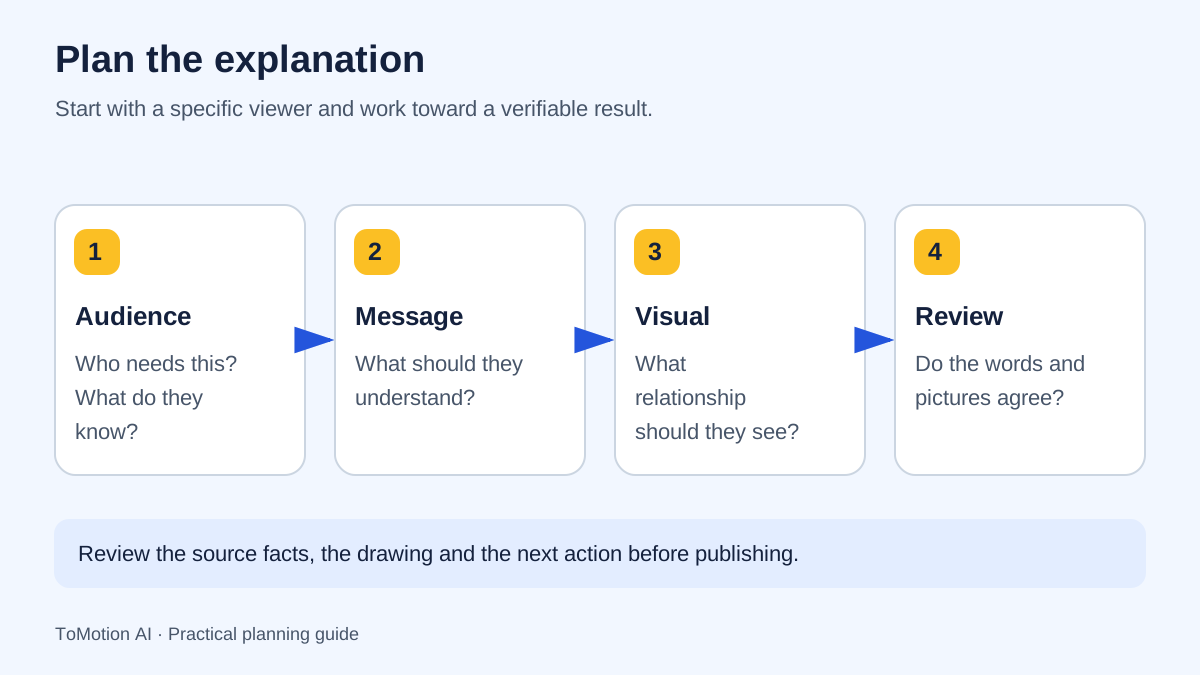
Write the audience and outcome before the visual style. “Explain our expense process to a new employee” gives the video a more useful direction than “make a beautiful business animation.” Add the facts that must remain unchanged, especially names, numbers, sequence and exceptions.
Specify what each scene should make easier to understand. An arrow might represent movement, responsibility or cause; name which one you mean. If a relationship cannot be verified from the source, remove it or mark it for review rather than letting a decorative diagram imply certainty.
Generate a draft and review the explanation
In ToMotion, start from a prompt or enable Use own script when you have prepared narration. Keep spoken words in Script and scene directions in Video instructions. Choose the aspect ratio for the destination before generating, and select a duration that leaves room for the idea.
Watch once without stopping to check the overall explanation. Then review the labels, pronunciation, transitions and final action. Keep a simple record of the input and the changes you requested so the next iteration addresses a specific issue rather than adding more unrelated instructions.
- Confirm the source facts and intended audience.
- Prepare a brief or reviewed narration and separate visual instructions.
- Choose the appropriate landscape or portrait layout.
- Compare the generated explanation with the approved source.
- Publish the video beside useful text and a relevant next step.
Make the example accessible and reusable
A visitor may want to skim, read silently or revisit one instruction. Publish a concise written explanation next to the video, and prepare accurate captions and a transcript for the final distribution player. W3C recommends planning media accessibility early rather than leaving it until production is complete.
For a teaching example, include a small question or task that tests the intended idea. For a business example, name the source owner and the event that would require an update. A video that remains findable and accurate is more useful than a large gallery without context.
Sources
- W3C: planning accessible audio and video — checked
- Digital.gov: plain language guidance — checked
Quick checklist
Name the audience and one takeaway.
Use source facts you can verify.
Check diagrams as well as narration.
Keep product claims current.
Prepare captions and supporting text.
Record the approved input and review notes.
FAQ
What makes a good whiteboard explainer video?
It makes the intended relationship or process easier to follow. Clear narration, purposeful visuals and a useful ending matter more than the number of drawing effects.
Can I recreate these videos with the sample prompts?
The prompts are adaptable planning examples. They are not the original inputs for the displayed videos, and a generated result may differ in wording, scenes and timing.
Are all ToMotion videos traditional hand-drawn whiteboard animations?
The approved examples show different illustrated treatments. Preview the available styles and your generated result rather than assuming every style includes a drawing hand or the same animation effect.
Create your own AI video
Use ToMotion AI to turn prompts, scripts and prepared source material into narrated animated videos.