
ToMotion practical guide
Vertical Explainer Videos for Shorts, Reels and TikTok
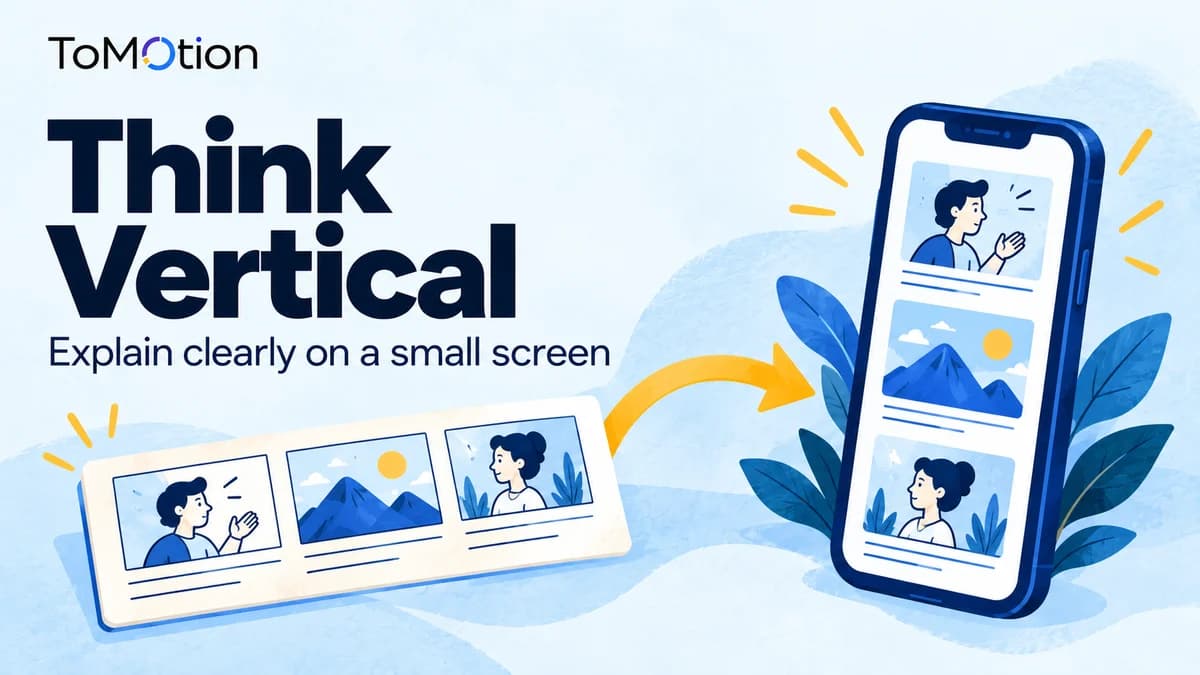
A vertical explainer should answer one clear question in a layout designed for a phone. Choose portrait before generation, simplify the scene structure and preview the final video inside the destination app so captions and controls do not cover essential information.
By ToMotion AI, a product of Assureme Technologies Private Limited.
Written by ToMotion AI. Worked scripts and planning diagrams are original illustrative examples. Product instructions reflect the create workflow reviewed on October 4, 2026; source guidance is linked where used.
At a glance
- Choose 9:16 before generating a portrait explainer.
- Design one readable idea per scene.
- Check captions, overlays and upload rules on each destination.
Choose one question that fits a phone-sized explanation
A short video works best when its promise is specific enough to fulfill. “How do I request access?” is easier to plan than “Everything about our software.” Put the useful answer near the beginning, then spend the remaining time making it understandable.
A hook should identify the viewer’s problem or question without promising a result the video cannot support. Avoid introducing several different topics to make the clip feel substantial. A clear explanation of one decision can be more useful than a compressed list of ten tips.
Design for portrait rather than cropping later
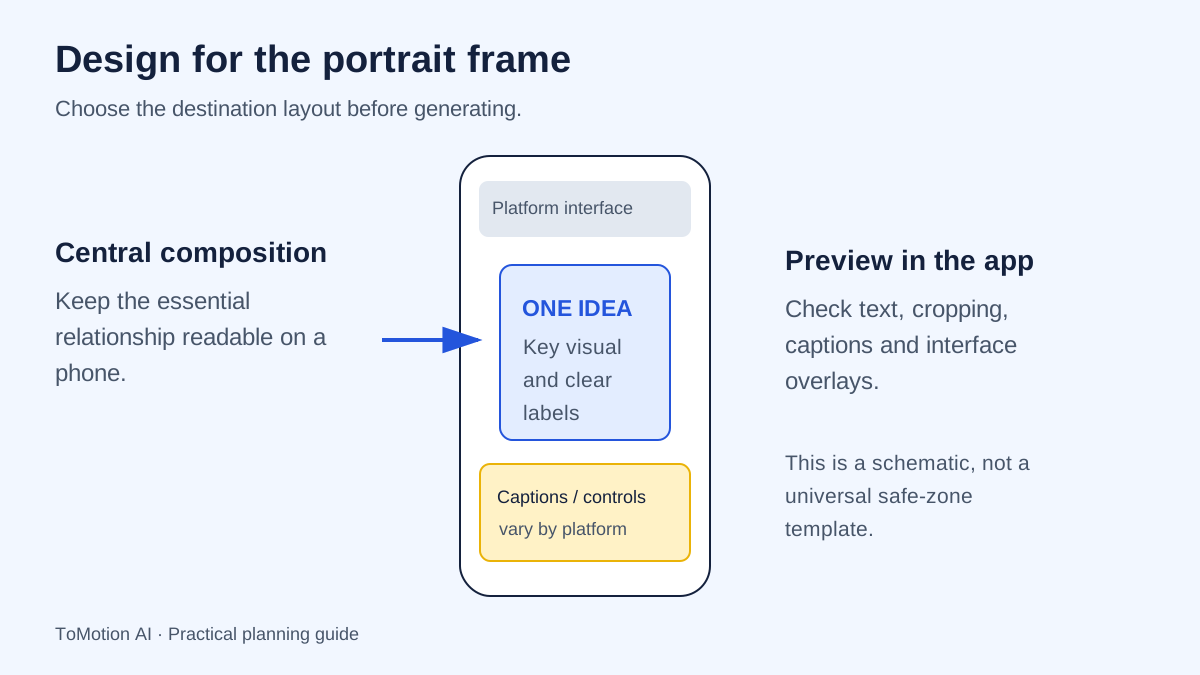
ToMotion’s current aspect-ratio controls include landscape 16:9 and portrait 9:16, with the portrait option labeled Instagram Reels. Choose the layout before generating. The label identifies a format; it does not mean ToMotion automatically publishes to an Instagram account.
A wide flowchart usually needs to be redesigned as a sequence of vertical scenes. Show the current step prominently and carry a small amount of context forward. Keep essential labels away from edges and check the actual platform preview instead of relying on one universal safe-zone measurement.
Turn a small explanation into a vertical storyboard
The fictional access-request example below contains a situation, the required information and a final check. It is a planning demonstration, not a procedure for ToMotion or any other service. Replace the details with the approved instructions for your organization.
| Scene | Spoken job | Visual job |
|---|---|---|
| Recognize the need | Name the task the viewer cannot complete | One person beside a locked resource. |
| Make the request useful | Explain what information to include | Reveal resource, reason and deadline one at a time. |
| Confirm the next step | Direct the viewer to the approved request route | Show the route name and one clear next action. |
Need access to a shared resource? Before you send a request, collect three details: which resource you need, why you need it and when you need it. Use your team’s approved request route so the right person can review it. If you are unsure who owns the resource, ask your manager before sharing sensitive details. A clear request makes the next conversation easier.
Look at an existing portrait creative
The ToMotion marketing clip below is an existing portrait example. Use it to inspect how a message is framed on a tall screen. It is not a test showing that portrait videos outperform landscape, and historical promotional claims should be checked against current product information.
Open the video on a phone and look at the smallest label you need to read. Then watch without sound. If the main idea disappears, improve the text support or captions rather than adding more motion. A message can be visually attractive and still difficult to follow at feed size.
Check the destination’s current requirements
YouTube’s guidance describes square or vertical uploads of up to three minutes as Shorts under its current eligibility rules. That is a platform limit, not a recommended length for every explanation. Choose the time needed for the task and confirm the classification during upload.
Do not assume that the same duration, caption position, music rights or publishing options apply to Reels and TikTok. Review the current upload interface for each destination. ToMotion’s duration choices and the platform’s upload limits are separate constraints; select or edit the final export accordingly.
Make captions and scene labels work together
Captions and visual labels have different jobs. Captions represent speech and relevant audio; a diagram label identifies an object or step. Keep them from covering each other, and check spelling, names and technical terms against the final narration.
TikTok provides accessibility features including caption-related tools. Review generated captions before publishing instead of treating automatic transcription as final approval. Keep a clean master export so each platform’s text and controls can be checked independently.
Measure the next action, not only the view count
Decide what the clip should help someone do: finish a lesson, read a support article or understand a product. Link to the relevant destination where the platform allows it. A large number of views without the intended audience or action may not meet that goal.
When reviewing performance, compare similar topics and placements and record changes to the opening, length and caption treatment. Watch-time differences can have several causes. Use a small set of deliberate revisions rather than claiming a single visual trick guarantees reach.
Sources
- YouTube: understanding three-minute Shorts — checked
- TikTok: accessibility for videos — checked
- W3C: planning accessible audio and video — checked
Quick checklist
Write one clear promise.
Select the portrait layout.
Replace wide diagrams with a sequence.
Review text on a real phone.
Check captions and app overlays.
Confirm the final upload settings.
FAQ
Can one vertical video be used on Shorts, Reels and TikTok?
Often the same portrait master can be adapted, but check each platform’s current limits, captions, overlays and media permissions before publishing.
Does ToMotion publish directly to social platforms?
This guide describes generating a video and preparing it for upload. It does not claim that ToMotion schedules or publishes directly to your social accounts.
Should I always use the maximum allowed duration?
No. Use the time needed to explain the selected task clearly. A maximum upload duration is not a target for every video.
Create your own AI video
Use ToMotion AI to turn prompts, scripts and prepared source material into narrated animated videos.